The React Developer Tools browser extension offers a profiling feature (not to be confused with the Profiler component) that allows you to gauge your app’s quality in terms of performance, and identify unnecessary re-renders. Once it is installed in the browser, two new tabs are added to the Chrome Dev Tools: Components and Profiler.
In this blog post, we’ll concern ourselves with the Profiler feature.
Before you continue, if you haven’t read the following article, I would highly recommend it as it’ll make understanding this post easier.
The Setup and the basics of the Profiler tab
The React app we’ll use as an example will be barebones, such as the following:
function App() { return ( <div style={ style }> {`<App />`} <Parent /> </div> )}function Parent() { return ( <div style={ style }> {`<Parent />`} <ExpensiveChild /> </div> )}function ExpensiveChild() { return ( <div style={ style }> {`<ExpensiveChild />`} </div> )}Throughout the post, I’ll make changes to the three components above, and highlight the changes.
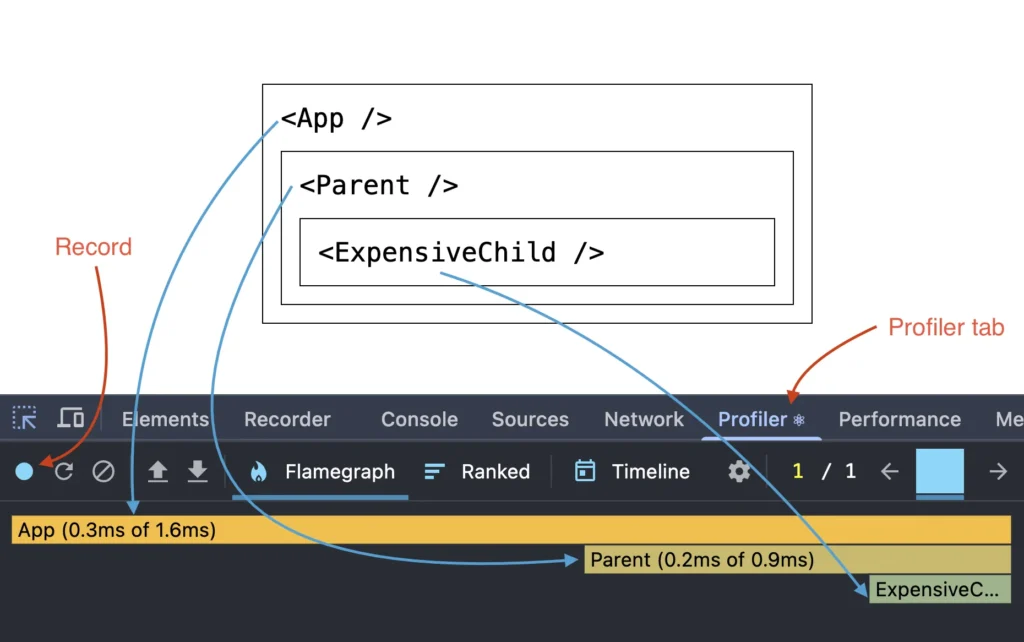
<App />is the Root app<Parent />is the child of<Root /><ExpensiveChild />is the child of the<Parent />
ExpensiveChild is the component that does an expensive operation on render. It is named that way to imply it should only re-render when necessary, conversely, it should not re-render every-time any ancestor re-renders.
In the Profiler panel, we will concern ourselves with the Record button, and the Flamegraph tab. If you click the record button, it turns red and records the session, meaning, any state updates that happen in your app gets recorded until you stop the recording. \
Components without any props
If you observe the code from the previous section, none of the components receive any props. The only time each of the three components render is on page load, obviously.
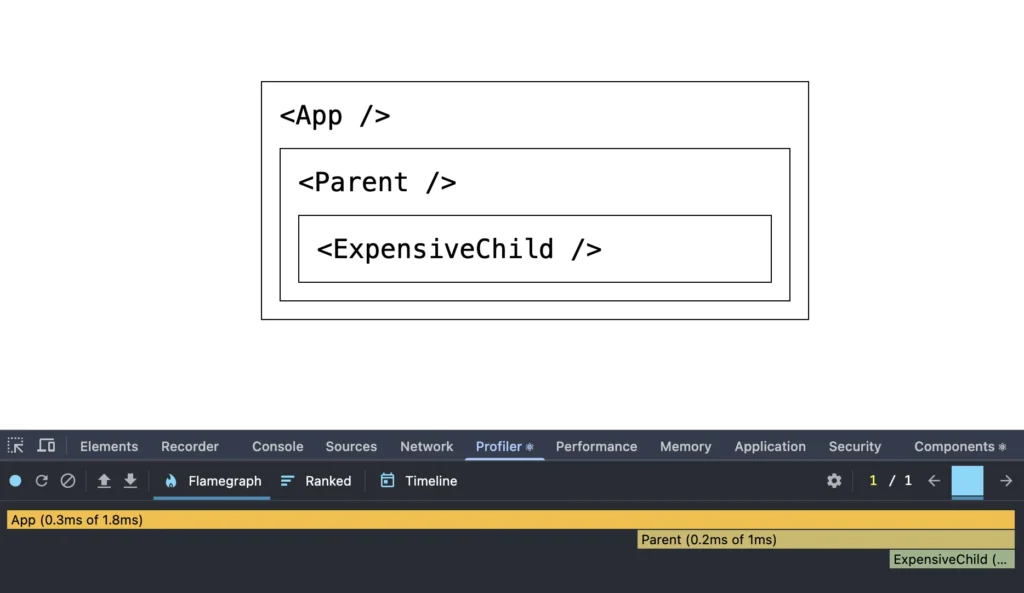
Clicking the button to the right of the record button reloads the page and starts recording the initial rendering of the app. The colored (yellow to green) horizontal bars under the Flamegraph tab indicate that each component has rendered.
At this stage of our app, we cannot profile re-renders because our app does not have any logic that triggers a re-render. Let’s add that logic in the next section.
Triggering re-render via state updates
We’ll modify the <Parent /> component such that it triggers a state update on click of a button.
import { useState } from 'react';// function App() { ... }function Parent() { const [ count, setCount ] = useState( 0 ); return ( <div style={ style }> {`<Parent />`} <button style={ { float: 'right' } } onClick={ () => setCount( count + 1 ) } > Counter ( { count } ) </button> <ExpensiveChild /> </div> )}// function ExpensiveChild() { ... }We added a button to the Parent component, which increments the count state variable on click.
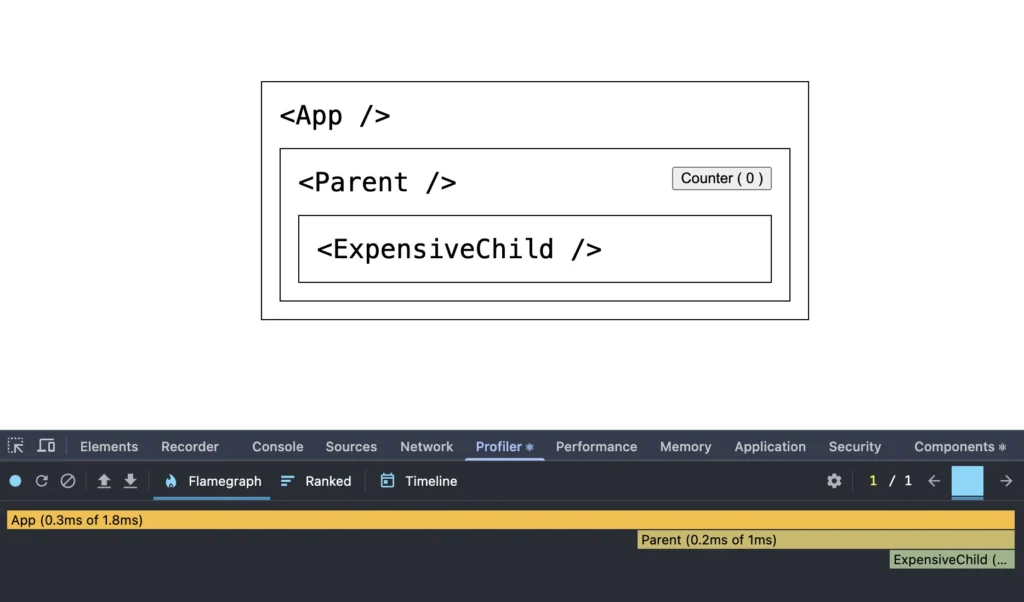
As expected, all the bars under the Flamegraph are colored on page load. But let’s see what happens when we update the state by clicking the button and record the state.
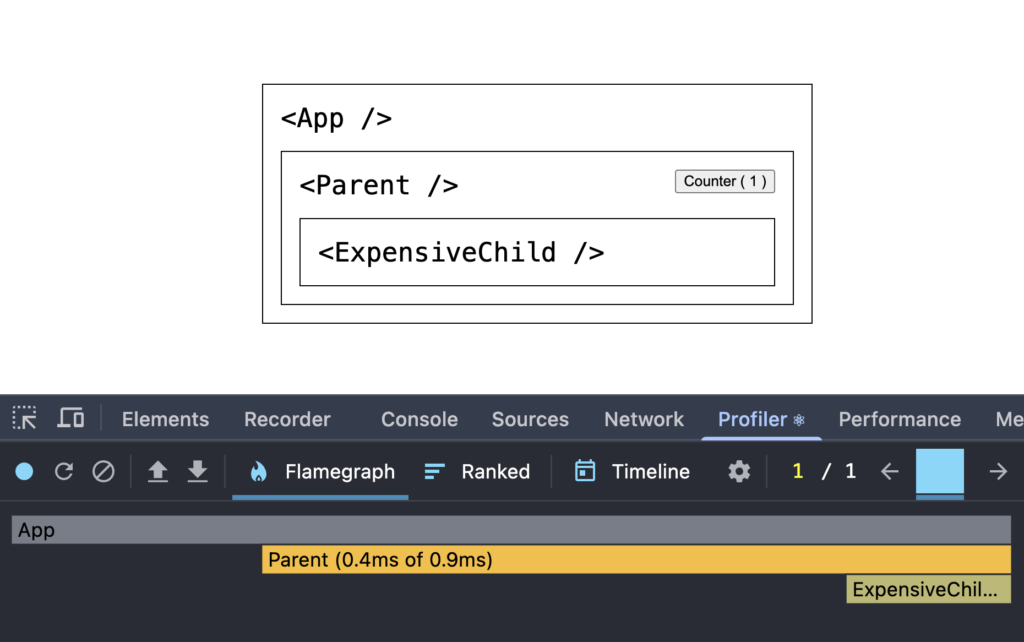
In the image above, it is visible that the counter has incremented from 0 to 1. In the Profiler, notice that the App bar is greyed out, which indicates that App did not re-render. The reason it did not re-render is because the state updated inside Parent which is a child of App.
One of the important notes to always remember about React’s re-rendering strategy is: State updates in a component will re-render all descendants (direct or nested) of that component. It will re-render components.
This is the reason why we see both the Parent and the ExpensiveChild components have re-rendered due to state updates in Parent.
Preventing an expensive component from re-rendering if not necessary
In practice, you will not entirely prevent an expensive component from re-rendering altogether, because an expensive component may require re-rendering. For example, the component may plot some graphs on mount that requires expensive computation. We don’t want this to re-render every time, but we might have to update the graph when certain input parameters to the graph may change.
For the sake of simplicity, we’ll try to prevent ExpensiveChild from re-rendering when Parent updates the count state variable. We’ll achieve that by using React.memo().
import { useState, memo } from 'react';const MemoizedExpensiveChild = memo( function ExpensiveChild() { return ( <div style={ style }> {`<ExpensiveChild />`} </div> )} );function Parent() { const [ count, setCount ] = useState( 0 ); return ( <div style={ style }> {`<Parent />`} <button style={ { float: 'right' } } onClick={ () => setCount( count + 1 ) } > Counter ( { count } ) </button> <MemoizedExpensiveChild /> </div> )}The React.memo(), or just memo() receives a Component as an input, and returns a memoized version of the component.
By default, React does not perform prop comparison. So even when the props on a component change, React does not care about it, and prop updates don’t play any role in deciding whether a component should re-render or not.
memo() however changes that default behaviour. A memoized component is an instruction to the React reconciler, to perform a shallow prop comparison and decide whether to skip a re-render.
memo() also accepts an optional custom comparator function as the second argument, which is explained in the next section.
Under the hood: what memo() actually stores
memo() does not cache a components output. All it does is wrap the component in a plain object that the reconciler knows how to recognize, and record which comparison function to use later.
The $$typeof tag is how React tells a memoized component apart from a plain function component. The second argument to memo() is an optional custom comparison function, and since we did not pass one, compare is stored as null. That null is not “no comparison”, it is a placeholder meaning “nothing custom was given, fall back to the default”. (v19.2.8/packages/react/src/ReactMemo.js#L28)
The first time when the React reconciler encounters the memoized fiber (the internal representation of the React component), updateMemoComponent() looks for a shortcut. If we wrap an ordinary function component in memo() and do not supply a custom comparator, React re-tags the fiber as a SimpleMemoComponent, which is a leaner path. In our example, the ExpensiveChild component qualifies for it so it takes that path.
The default path asks: “is this the same props object?” and the memoized path asks “are these two props objects shallowly equal?”. When the answer is yes, React sets didReceiveUpdate back to false and calls bailoutOnAlreadyFinishedWork(), which reuses the existing fiber and skips the subtree entirely. That bailout is exactly what the grey bar in the Flamegraph represents.
We will revisit this section later in this article when we introduce non-primitive props.